

(for beginners)
JavaScript is usually associated with websites, but now it is also a very practical way to build desktop applications. You can create apps that open in their own window, work with local files, show dialogs, notifications, system tray icon, and do pretty much what you would expect from a regular desktop application.
With swing-ui, you can build one JavaScript application and run it on Windows, Linux, and macOS. There is no browser window, no HTML page, and no CSS style to maintain. You write JavaScript, add the controls you need, and swing-ui creates a native desktop interface.
The best part for beginners is that you do not have to hand-code every part of the interface. Our free visual GUI designer lets you arrange windows, buttons, labels, and other components visually by dragging and droppping. It creates a UI definition file that swing-ui can load in your app when it starts and build your user interface on the fly. You can focus on what your app should do instead of spending hours coding controls by hand.
What can you build with swing-ui?
swing-ui is a good fit for everyday desktop software, such as:
- Small business tools and internal apps
- File organizers and converters
- Simple inventory or customer-management programs
- Personal productivity tools
- Desktop dashboards
- Utilities that need to work with local files
- Any information management software like CRM
It is especially appealing if you already know some JavaScript and would like to turn an idea into a desktop app without learning a completely different language.
What you need before you start
You only need a few things:
- A recent version of Node.js, Bun, or Deno 2+
- Java 11 JDK or newer installed on your computer
- A code editor such as Visual Studio Code or JetBrains WebStorm (great for coding and debugging)
Java is used behind the scenes to display the desktop interface. You do not need to write any Java code to use swing-ui; just make sure the JDK is installed and the java command is available in your system PATH. That’s it.
Create your first project
These examples will demonstrate the process using Node.js. For full instructions check Getting Started guide.
Make a new folder for the app and open a terminal in it. Then run:
// Initialize your project
npm init -y && npm pkg set type=module

// install swing-ui module
npm install swing-uiYour package.json will look roughly like this:
{
  "name": "my-project-name",
  "version": "1.0.0",
  "main": "index.js",
  "scripts": {
    "test": "echo \"Error: no test specified\" && exit 1"
  },
  "keywords": [],
  "author": "",
  "license": "ISC",
  "description": "",
  "type": "module"
}
Now create a file named index.js.
Make a simple desktop window
Paste the following code into index.js:
import "swing-ui";

class HelloApp extends Window {
  constructor() {
    super("My First Desktop App");

    this.innerSize(420, 220)
      .position(200, 150)
      .closeOperation(Window.CloseOperation.Exit);

    this.nameField = new TextField("Your name")
      .position(20, 25)
      .size(240, 30)
      .addTo(this);

    this.message = new Label("Type your name, then click Hello.")
      .position(20, 75)
      .size(360, 30)
      .addTo(this);

    new Button("Say hello")
      .position(275, 25)
      .size(110, 30)
      .addTo(this)
      .onAction(() => {
        this.message.text(`Hello, ${this.nameField.text()}!`);
      });

    this.show();
  }
}

globalThis.app = new HelloApp();Run it with:
node index.jsYou should see a small desktop window with a name field and a button. Enter a name, press Say hello, and the message changes.
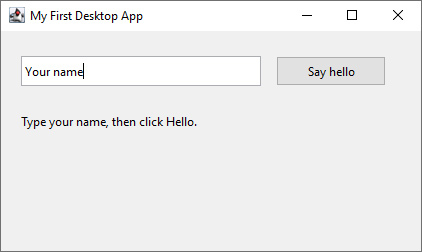
That is a complete (mini) desktop application: it has its own window, accepts input, and responds to a click. The code is short because swing-ui provides familiar building blocks such as Window, Label, Button, and TextField, and calls to UI elements are synchronous like in a web browser.
A quick look at what the code does
The first line, import "swing-ui", makes swing-ui’s desktop components available to your app. Components become globally available and there is no need to import each component into each .js file to be able to access them.
HelloApp is the window users see. Inside it, we create a text field, a label, and a button. The position() and size() calls tell swing-ui where each item should appear. When the button is clicked, onAction() runs the small piece of JavaScript that changes the label.
The last line keeps the app window available while the program is running. The reference to each component (including Window) must be assigned to some variable, Array or object property, otherwise it will get disposed (garbage-collected). We assigned HelloApp to globalThis.app. It may look unusual at first, but it simply helps to make sure your window stays open.
You do not have to code the GUI by hand
Writing a few controls in JavaScript is a great way to learn. But as an app grows, designing and editing the interface visually is often faster.
With the free visual GUI designer, you can drag controls into a window, resize them, set their starting text, and organize the layout without manually calculating every position. The designer saves that work into a UI definition file. When you start your app, the UI definition file is loaded and the UI gets built instantly on the fly.
This gives you a simple split between design and behavior:
- Use the visual designer to decide how the app looks.
- Use JavaScript to decide what happens when people use it.
You can still fine-tune a design in code whenever you need to. There is no need to choose between visual design and JavaScript; they work together.
If your window should adapt when users resize it, swing-ui also supports anchors. An anchor can keep a button attached to a bottom corner or allow a text area to stretch with the window.
Build once for the desktop platforms you care about
One of swing-ui’s biggest advantages is that the same JavaScript code can run on Windows, Linux, and macOS. That means you can spend your time improving the app itself instead of rebuilding the interface three times.
Before sharing your app, test it on the operating systems your users rely on. Check that your fonts, icons, file paths, and window sizes look right on each platform. This is a normal finishing step and helps the app feel polished everywhere.
A few beginner-friendly habits
Keep these in mind as you build:
- Import
swing-uionce in your main JavaScript file. - Keep your project set to ESM with
"type": "module"inpackage.json. - Add controls to a Window before showing the Window it loads faster and seems instant that way.
- Run the app from its project folder (setting current working directory to your project’s directory) so images and other local files with relative path are loaded correctly.
- When you are ready to exit your app from code, use
ui.exit(0)instead ofprocess.exit(0).
None of these are difficult rules. They simply make the project go smoothly.
Now you can use the JavaScript you already know and create real desktop applications for Windows, Linux, and macOS, and use the free visual GUI designer whenever you would rather design than hand-code a layout.
For the full component and API reference, visit the swing-ui JavaScript documentation.